
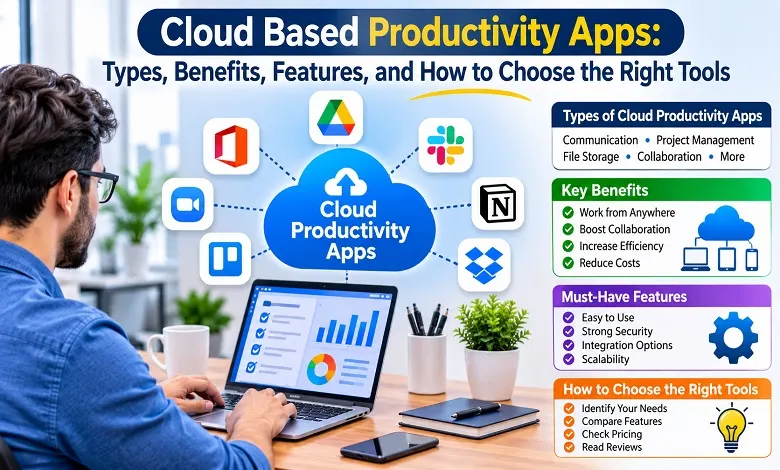
Cloud based productivity apps help individuals and businesses manage everyday work through internet-connected software. From creating documents and organizing projects to sharing files, communicating with colleagues, and tracking deadlines, these applications bring important work activities into a connected digital environment. Employees can access their information across supported devices without depending entirely on software installed on a single computer.
As businesses manage more projects, customers, and communication channels, keeping work organized becomes increasingly important. Traditional methods involving email attachments, separate spreadsheets, and locally stored documents can make collaboration difficult. Teams may spend unnecessary time finding the latest files, checking task progress, and coordinating responsibilities.
Cloud-based tools address many of these challenges by providing shared workspaces, automatic synchronization, centralized information, and collaboration features. However, using more applications does not automatically make a business more productive. The real value comes from selecting tools that fit existing workflows, work well together, and help employees complete tasks with less friction.
What Are Cloud Based Productivity Apps?
Cloud based productivity apps are software applications hosted on cloud infrastructure and accessed through an internet connection. Instead of relying exclusively on files and programs stored on an individual computer, users interact with services that store, process, and synchronize information through remote servers.
These applications are commonly delivered through the Software as a Service (SaaS) model. A provider maintains the underlying infrastructure, manages software updates, and makes the application available through a web browser or dedicated desktop and mobile applications.
Depending on the product, users can:
- Create and edit documents, spreadsheets, and presentations.
- Store, organize, and share files online.
- Assign tasks and monitor project progress.
- Communicate through messaging and video meetings.
- Manage schedules, appointments, and deadlines.
- Maintain shared knowledge bases and internal documentation.
- Automate repetitive administrative activities.
- Access work information across supported devices.
For example, a marketing agency might use Google Workspace for documents and email, Asana for project tracking, and Slack for team communication. A sales team might combine a cloud CRM with shared document storage and scheduling software.
Read Also: Smart City Data Management: Building the Foundation for Intelligent Urban Growth
How Do Cloud Productivity Apps Work?
Most cloud productivity applications follow a similar operating model. A user signs in through a browser or application, and the software communicates with the provider’s cloud infrastructure to access information and perform requested actions.
When someone edits a shared document, for instance, the application sends the changes to the cloud service. Depending on the platform, those changes are synchronized with other authorized users, allowing colleagues to view or edit the latest version.
The process generally involves four elements:
User interface: The browser or mobile application through which people access documents, tasks, messages, and other functions.
Cloud infrastructure: Remote servers, databases, and storage systems that support the application and maintain information.
Synchronization: Processes that keep changes consistent across connected devices and authorized users.
Access management: Authentication and permission controls that determine who can use the application and which information they can access.
Some applications also support offline functionality. Users may be able to work on previously synchronized documents without an internet connection, with changes uploaded when connectivity returns. The availability of this feature depends on the individual product and its configuration.
Main Types of Cloud Based Productivity Apps
Productivity covers many different activities, so businesses rarely depend on one application for everything. Understanding the main categories makes it easier to build a software environment that supports daily operations.
1. Cloud Office and Document Collaboration Apps
Office applications support common business activities such as writing reports, preparing proposals, creating presentations, and analyzing information.
They allow users to create and edit files, share documents with colleagues, manage permissions, and collaborate on the same content. Many platforms also provide version history, comments, templates, and automatic saving.
Popular examples include:
- Google Workspace: Provides tools such as Docs, Sheets, Slides, Gmail, and Drive for document creation, communication, and collaboration.
- Microsoft 365: Combines applications such as Word, Excel, PowerPoint, Outlook, OneDrive, and Teams.
- Zoho Workplace: Offers business email, document editing, file management, and collaboration features.
These applications are particularly useful for businesses where employees regularly prepare reports, exchange documents, and work on shared files.
2. Project and Task Management Apps
Project management applications help teams organize work into projects, tasks, milestones, and deadlines. They make responsibilities more visible and help managers understand which activities are progressing or falling behind.
Common capabilities include task assignment, due dates, progress tracking, project views, notifications, and workflow automation.
Examples include:
- Asana: Supports project planning, task ownership, timelines, and team coordination.
- Trello: Uses visual boards and cards to organize tasks and monitor workflow stages.
- ClickUp: Combines task management, project views, documents, and other work management features.
- monday.com: Provides customizable workspaces for managing projects and business processes.
A small marketing team, for example, can use a project management application to assign keyword research, content writing, editing, design, and publishing tasks. Everyone can see the responsible person and current status without requesting individual updates.
3. Team Communication and Video Meeting Apps
Communication tools help employees coordinate discussions, exchange information, and conduct meetings without depending entirely on email.
Depending on the platform, features may include direct messages, group conversations, video calls, screen sharing, meeting recordings, and integrations with other applications.
Common examples include:
- Slack: Organizes team communication through channels and direct messages.
- Microsoft Teams: Combines workplace messaging, meetings, collaboration, and integration with Microsoft 365.
- Zoom Workplace: Provides video meetings and additional workplace collaboration capabilities.
- Google Meet: Supports online meetings within the Google Workspace environment.
These tools are valuable for remote and hybrid teams, although businesses should establish clear communication practices to prevent excessive notifications and unnecessary meetings.
4. Cloud Storage and File-Sharing Apps
Cloud storage applications provide a central place to save, organize, synchronize, and share business files. They help employees access approved documents across devices and reduce dependence on individual computer storage.
Common capabilities include folder organization, sharing permissions, synchronization, file recovery, and version history.
Examples include:
- Google Drive: Supports cloud file storage and sharing, with close integration into Google Workspace.
- Dropbox: Provides file synchronization, sharing, and collaboration features.
- Microsoft OneDrive: Integrates cloud storage with Microsoft 365 applications.
- Box: Offers cloud content management and business-focused file collaboration features.
For organizations that regularly exchange proposals, design files, reports, and client documents, these applications can simplify file management. Access permissions should be configured carefully, particularly when documents contain confidential information.
5. Time Management and Scheduling Apps
Time management applications help individuals and teams organize their schedules, track working hours, and coordinate appointments.
They may provide shared calendars, reminders, availability management, time tracking, and scheduling links.
Examples include:
- Google Calendar: Helps users manage appointments, meetings, and shared schedules.
- Calendly: Simplifies appointment scheduling through availability-based booking.
- Clockify: Supports time tracking and reporting for individuals and teams.
- Toggl Track: Provides time tracking and reporting features for understanding how work hours are spent.
Consultants, agencies, and service providers can use these tools to coordinate client meetings, monitor project time, and plan workloads.
6. Knowledge Management and Note-Taking Apps
Knowledge management applications help businesses organize information that employees need to understand processes, policies, projects, and internal procedures.
They provide shared documents, searchable knowledge bases, notes, databases, and collaborative workspaces.
Examples include:
- Notion: Combines notes, documents, databases, and flexible workspace organization.
- Confluence: Supports team documentation, internal knowledge sharing, and project information.
- Evernote: Provides digital note-taking and information organization features.
A company can maintain onboarding instructions, standard operating procedures, meeting notes, and frequently asked questions in a shared knowledge environment. This reduces repeated explanations and makes organizational information easier to find.
Read Also: Semantic Logging Application Block: Everything You Need to Know About Structured Application Logging
Benefits of Using Cloud Based Productivity Apps
Cloud productivity software can improve how people organize and complete work. The benefits are most noticeable when applications address specific operational problems rather than simply adding another place to manage information.
Access Work From Different Locations
One of the main advantages is the ability to access information from supported devices and locations. Employees can review documents, update tasks, and participate in meetings without needing to be physically present in the office.
This flexibility supports remote employees, travelling professionals, distributed teams, and businesses with multiple locations.
Access still depends on internet availability, account permissions, device compatibility, and the application’s offline capabilities.
Improve Team Collaboration
Cloud applications allow authorized users to work with shared documents, project boards, and communication spaces. Team members can contribute to the same project without repeatedly exchanging separate file copies.
For example, a content team can draft an article in a shared document, leave editorial comments, assign revisions, and track its publishing status through a project management application.
This reduces version confusion and makes collaboration more transparent.
Reduce Manual Administrative Work
Many productivity applications offer automation for recurring activities. Teams can create task templates, schedule reminders, trigger notifications, and move work through predefined stages.
A sales department might automatically assign a follow-up task after a new lead enters its CRM. An agency could generate a recurring project checklist at the beginning of each client reporting cycle.
Automation is especially valuable when it removes repetitive steps without sacrificing necessary human review.
Keep Information More Organized
When files, conversations, and tasks are scattered across personal devices and disconnected platforms, employees may waste time locating the information they need.
Cloud workspaces can provide a more consistent structure for storing and accessing shared information. Search, file permissions, project histories, and document organization can make routine work easier to manage.
The quality of the result depends on how consistently employees use the system and maintain its information.
Support Business Growth
Cloud applications can make it easier to add users, introduce new workflows, and expand collaboration as a business grows.
Many SaaS providers offer subscription plans with different user limits and administrative capabilities. Businesses can select a suitable plan and adjust it as their requirements change.
However, growth may also introduce additional costs, storage needs, security responsibilities, and integration requirements. Scalability should be evaluated alongside the total cost of ownership.
Reduce Software Maintenance Responsibilities
With cloud-based SaaS applications, providers generally manage the underlying infrastructure and routine software updates.
This can reduce the need for businesses to install updates manually across every employee’s computer or maintain dedicated servers for individual applications.
It does not eliminate IT responsibilities. Organizations still need to manage accounts, permissions, device security, subscriptions, and data governance.
Essential Features to Look for in a Cloud Productivity App
A useful application should make everyday work easier while fitting the organization’s technical and operational requirements. Before choosing a platform, evaluate these features.
User-Friendly Interface
Employees should be able to complete common activities without unnecessary navigation or extensive training. Clear menus, understandable dashboards, and accessible controls can improve adoption.
A trial or demonstration is a practical way to test whether the application suits the people who will use it.
Real-Time Synchronization
Synchronization helps maintain consistent information across connected devices and authorized users. For collaborative applications, check how quickly changes appear and how the system handles simultaneous edits or conflicting updates.
Integration With Existing Software
Productivity applications should work with the systems a business already uses. Integrations may connect email, calendars, cloud storage, accounting software, CRM platforms, and project management tools.
Check whether integrations are native, require a third-party automation service, or need custom development. Also consider which subscription plans include the required connections.
Security and Access Management
Business information may include customer details, employee records, contracts, financial documents, and internal communications.
Important controls can include multi-factor authentication, encryption, role-based permissions, administrative access management, audit logs, and secure sharing options.
The available controls vary by provider and subscription plan. Businesses should verify the actual features included rather than assuming that every plan offers enterprise-level security.
Mobile and Offline Support
A good productivity application should work reliably on the devices employees use. Check whether the mobile version supports the essential features available on desktop.
Offline access can also be important for employees who travel or work in areas with inconsistent internet connectivity. Confirm which activities remain available without a connection and how changes synchronize later.
Reporting and Automation
Reporting helps managers understand workloads, project progress, time usage, and operational performance. Automation can reduce repetitive tasks and standardize recurring processes.
Choose reporting features based on the decisions your business needs to make. Similarly, ensure automation rules are easy to review, change, and monitor.
How to Choose the Right Cloud Based Productivity Apps for Your Business
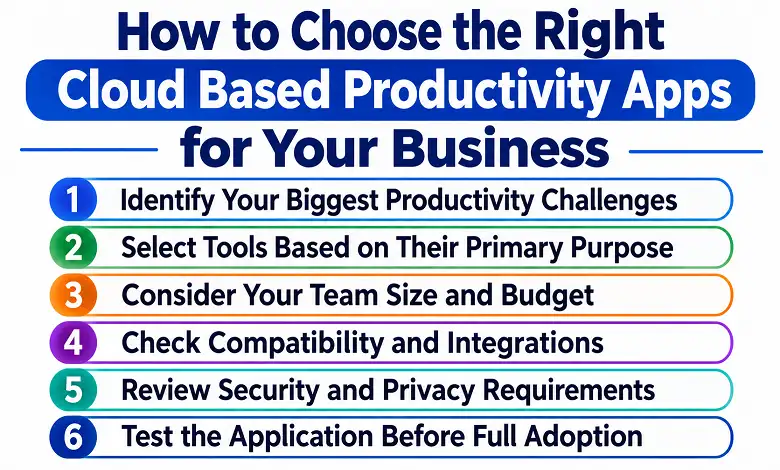
Selecting productivity software requires more than comparing popular brands. The right combination depends on your team size, daily activities, security requirements, budget, and existing technology.
1. Identify Your Biggest Productivity Challenges
Start by reviewing where work currently slows down. Common problems include:
- Employees cannot find the latest documents.
- Project responsibilities are unclear.
- Important messages get lost in email conversations.
- Managers struggle to monitor deadlines.
- Teams repeatedly enter the same information into different systems.
- Meetings and follow-ups consume too much working time.
Choose applications that directly address these problems. Avoid purchasing software simply because it has a large feature list.
2. Select Tools Based on Their Primary Purpose
Different tools serve different needs. A business that mainly works with documents may benefit from a complete office suite. A team managing complex projects may need dedicated project management software.
Use the following framework as a starting point.
| Business requirement | Suitable application category | Examples |
| Documents and spreadsheets | Office collaboration | Google Workspace, Microsoft 365 |
| Project tracking | Project management | Asana, Trello, ClickUp |
| Team communication | Messaging and meetings | Slack, Microsoft Teams, Zoom |
| File organization | Cloud storage | Google Drive, Dropbox, OneDrive |
| Scheduling | Calendar and time management | Google Calendar, Calendly, Clockify |
| Internal documentation | Knowledge management | Notion, Confluence |
The examples are category illustrations, not a universal ranking. Evaluate each product against your actual requirements.
3. Consider Your Team Size and Budget
A small business may need only a few essential applications, while a larger organization may require advanced administration, centralized identity management, and detailed reporting.
Compare subscription costs based on the number of users and the features included. Remember to account for storage limits, premium integrations, additional licenses, implementation, and training.
A free plan may be sufficient for an individual or small team, but businesses should review its limitations before relying on it for important operations.
4. Check Compatibility and Integrations
Before introducing a new application, confirm that it works with your existing systems.
For example, a project management platform should ideally connect with the tools employees use for communication, file sharing, and scheduling. Otherwise, staff may need to copy information manually between applications.
Also consider data export options. A business should understand how it can retrieve its information if it later changes providers.
5. Review Security and Privacy Requirements
Examine the provider’s security documentation, privacy policy, data processing terms, and administrative controls.
Consider whether the application supports the following:
- Multi-factor authentication.
- Role-based access permissions.
- Encryption for stored and transmitted information.
- Audit and activity logs.
- Backup and recovery processes.
- Data export and deletion.
- Appropriate compliance and contractual requirements.
The right requirements depend on the type of information being processed and the laws that apply to the organization.
6. Test the Application Before Full Adoption
Use a trial or limited pilot to test real business activities. Ask a small group of employees to create documents, assign tasks, share files, and complete a typical workflow.
Collect feedback about usability, reliability, integration quality, and the time required to complete common tasks.
A successful pilot provides more useful evidence than choosing a product based only on its marketing claims.
Are Cloud Based Productivity Apps Secure?
Cloud-based productivity applications can provide strong security controls, but their safety depends on the provider’s practices, the subscription plan, and how the organization configures and uses the service.
Businesses should not assume that moving information to the cloud automatically makes it secure. Weak passwords, excessive sharing permissions, compromised accounts, poorly managed integrations, and incorrect configurations can still expose sensitive information.
The National Institute of Standards and Technology (NIST) discusses access-control requirements for cloud service models, including SaaS applications. Its guidance highlights the importance of managing access to cloud systems according to the services and resources involved.
Organizations should consider the following measures.
Enable multi-factor authentication: Require an additional verification method for accounts, especially those with access to confidential information or administrative settings.
Use role-based permissions: Give employees access only to the files, workspaces, and functions necessary for their responsibilities.
Review external sharing: Establish rules for sharing documents with clients, contractors, and other outside parties. Remove access when it is no longer required.
Protect devices: Keep operating systems and applications updated, use appropriate endpoint protection, and secure devices that access business accounts.
Review third-party integrations: Check which applications can access business information and remove connections that are no longer needed.
Understand data handling: Read the provider’s documentation about data storage, backups, retention, deletion, incident response, and account termination.
For organizations handling regulated or sensitive information, security and compliance requirements should be reviewed before adopting a platform.
Common Mistakes Businesses Should Avoid
Cloud productivity applications can create new problems when they are introduced without a clear plan.
Using Too Many Applications
Adding separate tools for every small task can create overlapping subscriptions and fragmented information. Employees may not know where to find the correct document or which application contains the latest update.
Start with essential tools and add specialized applications only when they solve a clear problem.
Ignoring Employee Training
Even a feature-rich platform will have limited value if employees do not understand how to use it. Provide practical training and document basic workflows so everyone follows consistent procedures.
Overlooking Subscription Costs
Low starting prices can be misleading when additional users, storage, integrations, and premium features are required. Calculate the expected cost as the team grows rather than comparing only entry-level plans.
Failing to Set Access Permissions
Sharing settings should be reviewed regularly. Public links and unnecessary permissions can expose confidential information beyond its intended audience.
Automating Poorly Defined Processes
Automation cannot replace a clear workflow. First establish who is responsible for each task, what information is required, and what conditions must be met before the next step begins.
Frequently Asked Questions About Cloud Based Productivity Apps
Q: What are the most common cloud based productivity apps?
A.Common examples include Google Workspace and Microsoft 365 for office collaboration, Asana and Trello for project management, Slack and Microsoft Teams for communication, and Google Drive, OneDrive, and Dropbox for cloud storage. The most suitable choice depends on the work a person or business needs to complete.
Q: Are cloud productivity apps better than desktop software?
A. Neither option is automatically better for every situation. Cloud applications are useful for shared access, synchronization, and collaboration, while desktop software may offer advantages for specialized tasks, local processing, or environments with limited connectivity. Some modern products combine both approaches.
Q: Can cloud based productivity apps work without the internet?
A. Some applications provide offline access to previously synchronized files or selected features. Changes are generally synchronized when the device reconnects. However, offline capabilities differ between providers and applications, so businesses should test them before relying on them.
Q: Are cloud productivity apps suitable for small businesses?
A. Yes. Small businesses can use cloud applications to manage documents, communicate with customers, organize projects, and coordinate employees without maintaining extensive software infrastructure. Subscription plans also allow many businesses to start with a limited number of users.
Q: What is the difference between cloud productivity apps and SaaS?
A. SaaS, or Software as a Service, is a software delivery model in which a provider hosts and manages an application that customers access over a network. Cloud productivity apps are a category of SaaS or cloud-delivered software designed to support work activities such as communication, document creation, scheduling, and project management.
Q: How do cloud based productivity apps improve collaboration?
A. They allow authorized users to share documents, communicate, update tasks, and work on common projects through connected platforms. Features such as real-time editing, comments, notifications, and shared dashboards help teams coordinate activities and maintain visibility into ongoing work.
Q: How much do cloud productivity applications cost?
A. Costs vary by provider, subscription tier, user count, storage capacity, and available features. Some applications offer free plans, while business and enterprise plans generally charge recurring fees. Businesses should compare the total expected cost rather than relying only on advertised starting prices.
Q: How can a business measure productivity improvements?
A. Businesses can track practical indicators such as project completion time, overdue tasks, document turnaround, administrative workload, employee adoption, and the number of manual steps in recurring workflows. Compare these measures with a reliable baseline to understand whether the software is delivering meaningful improvements.
Conclusion
Cloud based productivity apps have changed how individuals and businesses organize everyday work. They make it easier to collaborate on documents, manage projects, communicate with colleagues, share files, and coordinate schedules through connected digital workspaces.
However, the best results do not come from using the largest number of applications. They come from selecting tools that solve real operational problems, integrate with existing systems, protect business information, and remain easy for employees to use.
Before choosing a platform, evaluate its core features, usability, security controls, integrations, offline capabilities, and total cost. Start with essential applications, test them through real workflows, and expand the software environment only when there is a clear business reason.
With the right combination of tools and well-defined processes, organizations can create a more organized working environment, improve collaboration, and make better use of their time and resources.