

Business reporting is the foundation of informed decision-making. From financial statements and sales reports to inventory summaries and customer analytics, organizations depend on accurate reports to monitor performance and plan future strategies. Behind every successful reporting system is a report application server, a critical component responsible for processing report requests, retrieving data, and delivering reports to users.
When this component stops functioning correctly, users may encounter the the report application server failed error. This issue is common across enterprise reporting platforms and can prevent reports from being generated, exported, or scheduled. While the error message may seem straightforward, it often points to underlying problems such as server resource limitations, database connectivity failures, permission issues, software incompatibilities, or configuration errors.
Understanding how a report application server works is the first step toward diagnosing and resolving these issues. Rather than treating the error as a single problem, administrators should view it as an indication that one or more components in the reporting workflow require attention.
This guide will help you maintain a reliable and high-performing reporting environment.
What Is a Report Application Server?
A report application server is a centralized software service that manages the creation, processing, and delivery of reports within an enterprise application. Instead of generating reports directly on a user’s computer, the server performs all report-related processing in a secure and controlled environment before delivering the final output.
Whenever a user requests a report, the report application server receives the request, connects to the appropriate data source, processes the report template, performs calculations, applies formatting, and generates the report in the desired format.
Depending on the reporting platform, reports may be exported as:
- Microsoft Excel
- Microsoft Word
- HTML
- CSV
- XML
This centralized approach improves performance, enhances security, simplifies administration, and allows multiple users to generate reports simultaneously without affecting the performance of their local devices.
A report application server is commonly used in enterprise reporting platforms such as SAP Crystal Reports, SAP BusinessObjects, Microsoft SQL Server Reporting Services (SSRS), JasperReports, Oracle Reports, and other business intelligence solutions.
Why Is a Report Application Server Important?
Modern organizations generate thousands of reports every day. Processing these reports on individual workstations would be inefficient, difficult to manage, and potentially insecure. A report application server solves these challenges by providing a centralized reporting infrastructure.
Some of the most important benefits include:
Centralized Report Processing
A report application server manages all report generation from a single location, ensuring consistency across departments and reducing administrative complexity.
Improved System Performance
Generating large reports requires significant CPU and memory resources. By moving this workload to a dedicated report application server, organizations reduce the processing burden on end-user devices and improve overall system performance.
Stronger Security
Business reports often contain confidential information such as financial records, payroll data, customer details, or operational metrics. A report application server enforces authentication, authorization, and access controls to protect sensitive information.
Automated Scheduling
Many organizations rely on scheduled reports for daily, weekly, or monthly operations. A report application server can automatically generate and distribute reports without manual intervention, improving efficiency and reducing repetitive tasks.
Scalability
As reporting demands increase, a report application server can support additional users, larger datasets, and more complex reports while maintaining stable performance.
How Does a Report Application Server Work?
To understand why the report application server failed error occurs, it’s helpful to understand the report generation process.
Although different reporting platforms have unique architectures, most report application server environments follow a similar workflow.
Step 1: User Requests a Report
A user accesses an application, reporting portal, or dashboard and selects a report. They may also specify filters such as date ranges, departments, customers, or products.
Step 2: The Report Application Server Validates the Request
The report application server verifies the user’s identity and confirms they have permission to access the requested report.
If authentication fails, report generation stops before any data is processed.
Step 3: Database Connection
After validating the request, the report application server connects to one or more databases or external data sources.
Depending on the report, this may include:
- SQL Server
- Oracle Database
- MySQL
- PostgreSQL
- SAP HANA
- Cloud-based databases
The server retrieves only the data required for the requested report.
Step 4: Report Processing
Once the data has been retrieved, the report application server processes the report template.
During this stage, it performs tasks such as:
- Applying filters
- Executing formulas
- Calculating totals
- Sorting records
- Creating charts
- Formatting tables
- Generating summaries
This processing stage often consumes the most server resources.
Step 5: Report Generation
After processing is complete, the report application server creates the final report in the selected output format.
Depending on user preferences, the report may be generated as a PDF, Excel spreadsheet, Word document, HTML page, or another supported format.
Step 6: Report Delivery
Finally, the completed report is delivered to the user through:
- A web application
- Desktop software
- Scheduled delivery
- Download portal
- API integration
Every stage depends on the report application server functioning correctly. If any component fails, users may receive the report application server failed error instead of the expected report.
What Does the Report Application Server Failed Error Mean?
The message the report application server failed is a general server-side error indicating that the reporting engine could not complete the requested operation successfully.
Although the wording suggests that the reporting server itself has failed, the actual problem may originate elsewhere in the reporting infrastructure.
For example, the error may be triggered because:
- The reporting service has stopped unexpectedly.
- The server cannot establish a database connection.
- A report template has become corrupted.
- System resources have been exhausted.
- User permissions are insufficient.
- Software versions are incompatible.
- Network communication has been interrupted.
Because multiple systems work together during report generation, identifying the root cause requires a structured troubleshooting approach rather than relying solely on the error message.
Common Causes of the Report Application Server Failed Error
Several technical issues can cause the report application server failed error. Understanding these causes helps administrators resolve problems more efficiently.
1. The Report Application Server Service Is Unavailable
If the report application server service is stopped, crashed, or fails to start during system initialization, report requests cannot be processed.
Common reasons include:
- Unexpected server shutdowns
- Failed software updates
- Service configuration errors
- Operating system crashes
- Scheduled maintenance interruptions
Restarting the service may temporarily restore functionality, but recurring failures usually indicate a deeper underlying issue.
2. Database Connectivity Problems
A report application server relies on continuous communication with databases.
If database access fails, the reporting engine cannot retrieve the information required to generate reports.
Typical causes include:
- Invalid database credentials
- Expired passwords
- Incorrect connection strings
- Database server downtime
- Firewall restrictions
- Network interruptions
Database connectivity should always be verified before investigating more complex reporting issues.
3. Insufficient Server Resources
Report generation can consume significant processing power, particularly when working with large datasets or complex report templates.
A report application server operating under heavy load may experience:
- High CPU utilization
- Memory shortages
- Low disk space
- Excessive concurrent report requests
These resource limitations frequently lead to slower performance and may eventually trigger the report application server failed error.
4. Corrupted Report Templates
Report definition files can become damaged due to software upgrades, interrupted file transfers, version incompatibilities, or manual modifications.
When the report application server attempts to process a corrupted report template, report generation may fail or produce incomplete output.
5. Permission and Authentication Issues
A report application server must have the appropriate permissions to access databases, report templates, temporary directories, and network resources. If these permissions are missing or incorrectly configured, the reporting process may fail before the report is generated.
Permission-related issues are particularly common after:
- Server migrations
- Operating system updates
- Security policy changes
- User account modifications
- Active Directory updates
For example, if the service account running the report application server loses permission to connect to the database or read report files, users may immediately encounter the report application server failed error.
6. Software Version Incompatibility
Enterprise reporting solutions often consist of multiple components, including the reporting engine, runtime libraries, SDKs, web applications, and database drivers.
If these components are running incompatible versions, the report application server may not function correctly.
Common compatibility issues include:
- Outdated reporting runtime
- Unsupported SDK versions
- Mismatched application patches
- Incompatible database drivers
- Unsupported operating system updates
Before upgrading any reporting software, always verify compatibility between every component in the reporting environment.
7. Network Communication Failures
A report application server depends on stable communication between several systems, including databases, authentication servers, storage services, and client applications.
Even minor network interruptions can prevent successful report generation.
Typical network-related problems include:
- DNS resolution failures
- Firewall restrictions
- VPN connectivity issues
- Proxy configuration errors
- Packet loss
- High network latency
Monitoring network performance helps identify communication issues before they affect reporting services.
8. Corrupted Cache or Temporary Files
Most reporting platforms create temporary files while generating reports.
If these files become corrupted or the cache grows excessively, the report application server may experience unexpected failures.
Regularly clearing temporary files and rebuilding the reporting cache can improve performance and reduce unexpected errors.
How to Fix the Report Application Server Failed Error
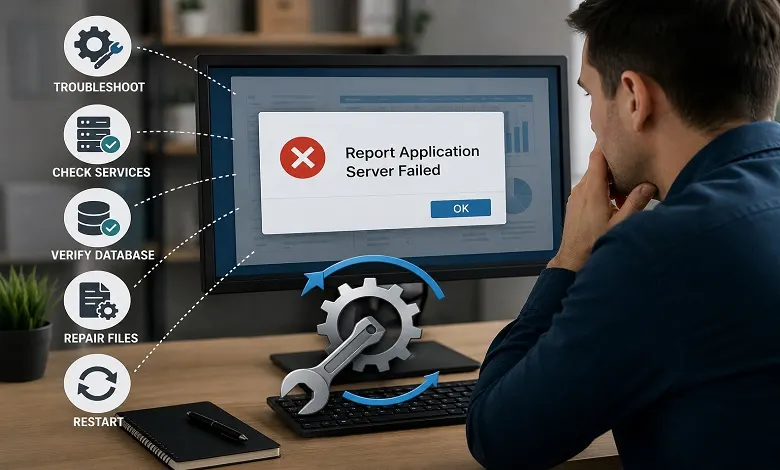
Once you’ve identified the possible cause, follow these troubleshooting steps to restore your reporting environment.
Restart the Report Application Server
The first and simplest step is restarting the report application server service.
Restarting the service:
- Clears temporary memory usage
- Releases locked resources
- Re-establishes database connections
- Reloads configuration settings
Although restarting may resolve temporary issues, recurring failures usually indicate a deeper problem that requires further investigation.
Verify Database Connectivity
Since every report application server depends on database access, confirming connectivity should be one of your highest priorities.
Check the following:
- Database server status
- Connection strings
- Authentication credentials
- Database user permissions
- Firewall settings
- Network connectivity
If the reporting server cannot communicate with the database, report generation will fail regardless of the report template.
Review Server Logs
Log files provide valuable information about why the report application server failed.
Look for errors related to:
- Database connections
- Authentication failures
- Missing files
- Runtime exceptions
- Memory allocation
- Service startup failures
- Network timeouts
Most enterprise reporting platforms maintain detailed logs that can significantly reduce troubleshooting time.
Validate Report Templates
Sometimes the issue isn’t the report application server itself but the report being processed.
Open the report in the report designer and check for:
- Invalid formulas
- Missing database fields
- Broken parameters
- Corrupted objects
- Unsupported functions
If necessary, recreate the report template or restore it from a backup.
Check Available System Resources
Large reports consume significant CPU, memory, and storage resources.
Monitor the server for:
- CPU utilization
- RAM usage
- Disk space
- Disk I/O
- Active processes
If the report application server consistently runs near maximum capacity, consider increasing server resources or optimizing report design.
Confirm User Permissions
Verify that both users and service accounts have permission to:
- Read report files
- Access databases
- Create temporary files
- Execute stored procedures
- Use required network resources
Permission errors are among the most overlooked causes of the report application server failed error.
Update Reporting Components
If compatibility issues are suspected, install the latest supported versions of:
- Reporting software
- Runtime libraries
- Database drivers
- SDK components
- Operating system patches
Always test updates in a staging environment before deploying them to production.
Best Practices for Maintaining a Report Application Server
Preventive maintenance is far more effective than emergency troubleshooting. Following these best practices can improve the reliability and performance of your report application server.
Monitor Server Performance
Regularly track:
- CPU usage
- Memory consumption
- Disk utilization
- Network performance
- Report processing times
Early detection helps prevent unexpected outages.
Keep Software Updated
Install vendor-approved updates for:
- Reporting software
- Runtime components
- Database drivers
- Security patches
Keeping your report application server updated reduces compatibility issues and improves security.
Optimize Report Design
Poorly designed reports can overload the reporting engine.
Improve performance by:
- Limiting unnecessary database queries
- Reducing excessive calculations
- Using indexed database fields
- Removing unused report objects
- Simplifying complex formulas
Efficient report design reduces the workload on the report application server.
Schedule Regular Backups
Create backups of:
- Report templates
- Configuration files
- Server settings
- Scheduled report definitions
Backups allow administrators to recover quickly after hardware failures or accidental configuration changes.
Monitor Scheduled Reports
Organizations often rely on automated reporting.
Review scheduled jobs regularly to ensure:
- Reports complete successfully
- Delivery emails are sent
- Processing times remain acceptable
- Failed jobs are investigated immediately
Review Security Permissions
Periodically audit user permissions to ensure employees only have access to the reports they require.
This improves both security and compliance.
Final Thoughts
A report application server is one of the most important components of any enterprise reporting environment. It manages report processing, connects to databases, applies business logic, and delivers accurate reports to users across the organization. When users encounter the report application server failed error, it usually indicates that one or more parts of the reporting workflow require attention rather than a complete server failure.
By understanding how a report application server works and following a structured troubleshooting process, administrators can quickly identify the root cause of reporting issues, minimize downtime, and restore normal operations. Regular maintenance, proactive monitoring, optimized report design, and keeping software components up to date are essential for ensuring a stable and reliable reporting infrastructure.
As reporting systems continue to support critical business decisions, investing time in maintaining your report application server will improve performance, reduce unexpected failures, and provide users with consistent access to the data they need.
Frequently Asked Questions
Q: What is a report application server?
A. A report application server is a centralized software component that processes, generates, and delivers reports by retrieving data from connected databases and applying report templates.
Q: Why does the report application server failed error appear?
A. The report application server failed error usually occurs because of database connectivity problems, server resource limitations, permission issues, corrupted report templates, network failures, or software incompatibilities.
Q: Can restarting the report application server solve the problem?
A. Yes. Restarting the report application server can resolve temporary issues by clearing memory, restarting services, and restoring database connections. However, recurring errors require further investigation.
Q: Is the report application server failure always caused by the server?
A. No. Although the message references the report application server, the underlying cause may involve the database, network, report template, user permissions, or software compatibility.